Developer Resources
Coding Standards and Conventions
The following are naming, rounding, and coding conventions that should be followed when making changes to ReEDS. All new code contributed to the repo should follow these conventions.
Note: Because these conventions were not written until after the model development began, you will notice that some of these conventions are violated in the current code base. The conventions are far from comprehensive. Our hope is that this light approach can help bring consistency to the model code without being burdensome to those writing the code.
In an effort to improve code quality, using the Ruff python linter is recommended. To get started with Ruff, see the guide on Installing Ruff. Once installed, you can check for errors using the following command from the base ReEDS-2.0 directory: ruff check. If you need more information on a specific error, see the Ruff Rules.
Naming, Rounding, and Coding Conventions
Naming Conventions
File names (GAMS files, input files, output files)
Folders are lower case
Files are lower case with underscores separating words (atb_mid_wind_2018.csv)
GAMS files are preceded by a letter and underscore, with each letter representing a file category and letters in alpha-order of file execution whenever possible (a_write_data.gms). When there are multiple GAMS files in the same category, they should be numbered to show the order in which they are called (a1_write_data, a2_inputs, a3_inputs_demand)
Output files start with a noun indicator for the general output category to make it easier to find (curt_marg rather than marg_curt, gen_ann rather than ann_gen)
Parameters
Use lower case with underscores separating words
Like the output files, the first word of parameters should be a noun indicator of the parameter type (curt_marg rather than marg_curt)
Cost parameters should generally start with “cost” (e.g., cost_fom, cost_cap)
Variables
Use capital letters (example: INV)
Where possible, use the same naming for related variables (e.g., INV; INV_TRANS)
The first indicator in a variable name should be a noun or noun abbreviation for the variable type or category
equations (model constraints)
Begin with the prefix “eq_”
Use all lower-case letters with underscores separating words (example: eq_reserve_margin)
switches
Switches used in GAMS begin with the prefix “GSw_” in cases.csv; within GAMS, “GSw_”-labeled switches with numeric values are turned into scalars beginning with “Sw_”
Use descriptive names with upper camel case (e.g., Sw_ReserveMargin)
For on/off switches, “OFF” = 0 and “ON” =1
Do not use “|” or “~” in switch values
indices/sets
Use lower case
Use short rather than descriptive (e.g., “i” instead of “tech”) – preference for one or two letter names.
aliases
Use the same alpha character as the original set followed by a number (example: alias(r,r2))
subsets
Use lowercase
Use short but descriptive text
example: conv(i) is the subset of technologies that are “conventional”
crosswalk sets
Use the set names and separated by an underscore
example: r_st(r,st) is the crosswalk between region “r” and state “st”
Choosing names for parameters and variables
Names should be descriptive (e.g., “curt_marg” rather than “cm”)
Shorter names are generally preferred (e.g., “curt_marg” rather than “curtailment_marginal”)
Rounding Conventions
As a general rule, costs or prices should be rounded to two decimal places. All other parameters should be rounded to no more than 3 decimal places.
Note: Some exceptions to this might exist due to number scaling (e.g., emission rates)
Coding Conventions
Generally, each line in GAMS should be no longer than a standard page width (255 characters)
Declarations
Blocks of declarations are preferred to individual line declarations
Comments are required for each declaration
Units should always be defined first (even if they are unitless) enclosed in “–”
Example: cap_out(i,r,t) “–MW– capacity by region”
Comments need not be comprehensive
CAP(i,v,r,t) “–MW– capacity by technology i of vintage v in region r in year t”
CAP(i,v,r,t) “–MW– capacity by technology”
Ordering of indices
The following indices should always appear first in the following order: (1)ortype (2)i (3)v (4)r (5)h
The t (year) index should always be last
Other sets should generally be ordered alphabetically, respecting the two conventions above
Qualifiers
Enclosed with brackets “[]”
No space between qualifiers
example: \([qual1\)qual2]
Parenthesis should be used to make order of operations explicit
Incorrect: \([not qual1 \)not qual2]
Correct: \([(not qual1)\)(not qual2)]
Operators “and”, “not”, and “or” should be lower case
Equations (this applies to pre- and post-processing; model constraints)
Each term should begin with a plus (+) or minus (-) sign, even the first term
Summations
Summation arguments should be bookended with braces “{}” sum{…}
The summation will generally be separated into three parts that will appear on three different lines, with the closing } lining up with the opening {
[+/-] sum{ ([indices]) $ [qualifiers] ,
                  [parameter] * [variable]
                }
+ sum{(i,c,r,t)$[Qual1$Qual2 … $Qual3], cv_avg(i,r,t) * CAP(i,c,r,t) }For equations, sums should generally be split with terms on multiple lines. In some cases it will be more readable to leave the sum on one line (e.g., a short sum inside of a long sum).
Each term of an equation should be separated by a new line; white space should be inserted between terms
When reasonable, only one parameter should be multiplied by one variable
for example, “heatrate [MBtu/MWh] emissions rate of fuel [tons CO2/MBtu] GENERATION [MWh]” should be “emissions rate of plant [tons CO2/MWh] * GENERATION [MWh]”
this will help us limit numerical issues that result from the multiplication of two small numbers
When multiplying parameters and variables, parameters should appear on the left and variables on the right
Keep one space on either end of a mathematical operator (, /, +, -). example: “curt_marg * GEN” rather than “curt_margGEN”
Do not use recursive calculations; new parameters should be created
Example: “load = load 1.053” should be written as “busbarload = enduseload 1.053”
This will create consistency between the units specified in the parameter declaration and the use of the parameter
Comments
Do not use inline comments (comments preceded by //). This helps to make it easier to find comments
Do not use \(ontext/\)offtext except for headers at the beginning of files
Include a space after the “*” to start a comment
Do not use a comment to note an issue. Use the Issues feature in GitHub to document and suggest revisions, instead.
Example: Don’t do this:
*!!!! this will need to be updated to the tophrs designation after the 8760 cv/curt method is implemented
Other
GAMS functions such as sum, max, smax, etc. should use {}; Example: avg_outage(i) = sum{h,hours(h)*outage(i,h)} / 8760 ;
When including the semicolon on the end of a line there should be a space between the semicolon and the last character of the line (see previous example)
When using
/ /for a parameter declaration, place the closing semicolon on the same line as the final slash:/ ;Sums outside of equations (e.g., in e_reports) need not be split over multiple lines if they do not exceed the line limit
Do not use hard-coded numbers in equations or calculations. Values should be assigned to an appropriate parameter name that is subsequently used in the code.
Large input data tables should be loaded from individual data files for each table, preferably in *.csv format. Large data tables should not be manually written into the code but can be written dynamically by scripts or inserted with a $include statement.
Compile-time conditionals should always use a tag (period + tag name) to clearly define the relationships between compile-time conditional statements. Failure to do so hurts readability sometimes leads to compilation errors. Example:
$ifthen.switch1 Sw_One==A
  Do Something
$elseif.switch1 Sw_One==B
  Do Something
$else.switch1 Sw_One==C
  Do Something
$endif.switch1
Input Conventions and Data Handling
Input Conventions
Data read into b_inputs should already be filtered. E.g., if you are running ERCOT, only data for ERCOT should be included.
We did not structure things this way when we first built ReEDS, and it might not be possible to always meet this recommendation without a large amount of work. This recommendation represents the vision we are working toward rather than a requirement.
The same applies to scenarios. If there are multiple scenario options in a single file (e.g. inputs/carbonconstraints/co2_cap.csv), only the single scenario used in a model run should be copied to inputs_case and loaded in b_inputs.gms.
Input csv files that are written to inputs_case should have the same name as the GAMS parameter that reads that csv file.
Example: trancap_init(r,rr,trtype) reads in trancap_init.csv
Parameters read into b_inputs should also include a header that has the set names and then units for the values. An asterisk is required to keep GAMS from reading the header and throwing an error.
Parameters read into b_inputs should be surrounded by \(offlisting and \)onlisting so that they are not written to the .lst files.
Example:
parameter ev_static_demand(r,allh,allt) "--MW-- static electricity load from EV charging by timeslice"
/
$offlisting
$ondelim
$include inputs_case%ds%ev_static_demand.csv
$offdelim
$onlisting
/ ;
When a file read into b_inputs was created by an upstream script within the repository, include a note indicating which script created the file.
Example: “* Written by writecapdat.py”
In general, parameter declarations (which are in long format) are preferred to table declarations. Table declarations are acceptable when the table format can significantly reduce the files size or when the format of the native data better matches the table format.
Files used as inputs for the repository are always placed in an appropriate location within the “inputs” folder. Input files are grouped topically.
When there are multiple input options for a given input, the input file name should be “{file}_{option}”. For example:
battery_ATB_2022_moderate
battery_ATB_2022_conservative
If preprocessing is needed to create the input file that is placed in the ReEDS repository, the preprocessing scripts or workbooks should be included in the ReEDS-2.0_Input_Processing repository (https://github.nrel.gov/ReEDS/ReEDS-2.0_Input_Processing). Raw data files should be placed in that repository if their file size permits. Otherwise, raw data files should be placed in \nrelnas01\ReEDS\ _ReEDS Documentation.
Any scripts that preprocess data after a ReEDS run is started should be placed in the input_processing folder.
Input processing scripts should start with a block of descriptive comments describing the purpose and methodology, and internal functions should use docstrings and liberal comments on functionality and assumptions.
Any costs read into b_inputs should already be in 2004$. Cost adjustments in preprocessing scripts should rely on the deflator.csv file rather than have hard-coded conversions.
In general, if inputs require calculations before they are ingested into b_inputs, those calculations should be done in Python rather than in GAMS. GAMS can be used for calculations where the GAMS syntax simplifies the calculation or where upstream dependencies make it challenging for the calculations to happen in Python preprocessing scripts.
In Python, file paths should be added using os.path.join() rather than writing out the filepath with slashes.
Data column headers should use the ReEDS set names when practical. For example, data that include regions should use “r” for the column name rather than “ba,” “reeds_ba,” or “region.”
Preprocessing scripts in input_processing should not change the working directory or use relative filepaths; absolute filepaths should be used wherever possible.
When feasible, inputs used in the objective function (c_supplyobjective.gms) should be included in tests/objective_function_params.yaml. Inputs included in this .yaml file will be checked for missing values using input_processing/check_inputs.py.
Input Data
In general, all inputs less than ~10 MB should be in .csv format.
If the csv file would be larger than ~10 MB, then write it as a h5 file unless accessibility is especially important (e.g., the ReEDS_generator_database file needs to be easily accessible, so is kept as a csv file).
In some cases .txt files may be used as inputs if their format is especially convenient for the application.
Input files should be included in the repository when possible.
Files too large to include in the repository or unnecessary for the repository (e.g., files used only for special circumstances, such as individual sites for wind and solar) should be included in the appropriate folder on nrelnas and can be copied to the local repository in the preprocessing steps.
Files stored on nrelnas should have unique names that identify the version of the file and data. For example, you would use “special_input_data_2022_11_28” rather than “special_input_data.”
Add units to raw data files
When adding a new raw data file, include units in the column name to avoid confusion
As an example, look at ‘/inputs/plant_characteristics/conv_ATB_2023.csv’
The data in the “capcost” column are in unit of k\(/MW or \)/kW, although the units are not labeled
As a best practice, “capcost” should be named “capcost_usd.per.kw” to make units clear
Add comments to raw data files that represent GAMS subsets
When adding a new raw data file that represents a GAMS subset, include column headers representing the GAMS set that each column’s entries belong to, with the first column header being prepended by an asterisk (this allows GAMS to parse the first row of the .csv file as a comment)
For an example, see ‘/inputs/sets/fuel2tech.csv’
Version Control and Testing
ReEDS Versioning & Releases
This section outlines the current ReEDS approach to versioning. You can find current and past ReEDS versions here: ReEDS-2.0 Releases
Versioning overview
GitHub Releases are used to create ReEDS versions on a monthly cadence after a suite of tests are performed. More on ReEDS testing can be found here. More information on GitHub Releases can be found in the GitHub Doc.
Releases are based on Git tags, and the proposed versioning scheme is EPOCH.RELEASE.PATCH. The components are:
EPOCH: The current year, this will be incremented in January of each year (e.g., 2023)RELEASE: Restarts from 0 when EPOCH is increased, then increased by 1 each month when the newest version is createdPATCH: Typically will just be 0, but could increment if an important update or bug fix needs to be merged in prior to the next monthly release.
Tagging versions
Tagging with GitHub releases is not done manually with each pull request. After a new release has been created, a tag will be generated.
How to use tags:
You can check them out like any other commit:
git checkout tags/2023.1.0You may need to fetch tags to your machine first:
git fetch --tagsIf you plan to develop from an older tag (i.e., you’re not checking out main on the most recent tag and you plan to commit new changes), you’ll also want to specify a branch or create a new one:
git checkout -b <new branch name> <tag name>
ReEDS2X tool versions should reference the last ReEDS version they’re known to work for in their tag text or README
Each ReEDS run produces a meta.csv file with information on the branch, commit, and version of that run which can be used to determine the vintage of any given ReEDS run.
If you’re using ReEDS2X for a side project and would like to tag versions for them to refer to, the suggested format is:
EPOCH.RELEASE.PATCH.PROJECTNAME, whereEPOCH.RELEASE.PATCHrefers to the last version of main that has been merged into your project branch.The same format can be used to tag specific versions of the model that are used for published analyses that are not merged into main, e.g. 2023.4.0.hybrids.
In general, please add custom components to the tail of the version number instead of the beginning to keep them easy to sort.
Testing Guidelines
This section outlines the recommended testing that should be performed on ReEDS prior to creating a pull request or a new version.
Post-process Test
This testing should be performed when a change is made that does not change model code or data that might impact model outputs. Ex: changing the color styles in bokeh output plot, or adjusting a post-processing script such as runstatus.py
Ensure the post-processing capabilities operate correctly on outputs from the most recent version of main
A demonstration of this should be included in the pull request
Verify that the GitHub runner tests pass
Light Test (Pacific Region)
This testing should be performed for changes to model code that are not expected to have any meaningful impact on the model solution. Examples include:
Rounding an input parameter
Changing the name of a column or model parameter
Updating code within an if statement where the if statement does not apply under default settings (e.g., “if int(sw.GSw_calc_powfrac):” where the default value of sw.GSw_calc_powfrac is 0)
Adding a missing entry to runfiles.csv
Do a comparison run of the default test case (cases_test.csv) against a test run from main and produce a comparison report.
The report should be examined for any unexpected outputs and included in the pull request for review
Verify that the GitHub runner tests pass
Regular Test (Full U.S. Runs)
This testing should be performed for all other cases not covered by the post-process or light test
Do a comparison run of either USA_defaults or Mid_Case and a comparison of USA_decarb in cases_test.csv against equivalent runs from main.
You should be able to reasonably explain changes in capacity, generation, transmission capacity, bulk system electricity price, system cost, and runtime
The comparison report should be included in the pull request
In most cases, you should run both the Mid_Case and USA_decarb. Some simpler changes might only need a single scenario to provide enough confidence that the changes are operating as planned. If you are unsure, just ask.
Verify that the GitHub runner tests pass
New Version Test
This testing is required for a new tagged and released version
The full set of scenarios in cases_test.csv is run on HPC and Yampa (tests are also run locally on Mac or Windows). Any failing cases from cases_test.csv will be listed in the release notes.
For any error in the output processing scripts, a new GitHub issue should be created. Additionally, the issue should be noted in the release notes for the new version.
Lastly, comparison reports are created for the USA and USA_decarb scenarios to compare the current version with the previous released version. Those comparison reports should be attached to the release notes for reference.
Documentation Guidelines
When making changes to ReEDS, you should generate and update the sources.csv and sources_documentation.md files before merging.
How to Use Sources Documentation
Before running the .bat script, please ensure the sources.csv file is closed. If open, the script will be unable to replace the file and will throw an error.
Run generate_sources_md_file.bat script (for Mac and Linux users generate_sources_md_file.sh)located within the documentation_tools folder (ReEDS-2.0/docs/source/documentation_tools). You will need navigate to that directory prior to running.
This will run the first script generate_new_sources.py. generating a new sources.csv file at the top directory of the repository, please note,the existing sources.csv in your Repository root will be renamed to sources_{timestamp}.csv format. This can be deleted manually if no longer required; or can be held on to if required for comparison. Tree change files are generated in the documentations_tools folder to indicate files not included in the prior sources file (sources_files_added.csv), files removed from the prior sources file (sources_files_deleted.csv), and files not included in the sources file because they aren’t committed (sources_untracked_files.csv). These change files should not be committed and can be deleted when no longer needed.
Once this has finished running, please proceed to update relevant fields in the sources.csv file
Once relevant fields have been updated, please save sources.csv and close it.
Run generate_markdown.bat (for Mac and Linux users generate_markdown.sh)located within the documentation_tools folder. This will generate a README file sources_documentation.md with all the Source files and their details for the Repository by running the script generate_markdown.py. The markdown file will be generated in the ReEDS-2.0/docs/source/ location.
Commit and push the updated sources.csv and sources_documenation.md files.
How to Update Relevant Fields in sources.csv
Once prompted by the .bat script, open sources.csv (found at the Repository root).
Using the Added Files List, sources_files_added.csv (found within the documentation_tools folder) which displays all the input files added by the user, enter relevant details in corresponding columns of sources.csv. Fields that do not apply can be left blank. Do not add new columns to sources.csv without also updating the scripts to support the expanded fields.
Save the sources.csv and close the file.
Updating the ReEDS Documentation
The ReEDS documentation lives in the “docs/source” folder within the repo. Depending on the changes you’re making to the model, please update the documentation here accordingly. See the Getting Started with Markdown in VSCode if you’re unfamiliar with markdown.
To edit the ReEDS documentation:
Find the markdown file you would like to modify under the “docs/source” folder
Make any necessary changes and save the file
Commit and push your changes as you normally would.
When your pull request gets merged into main, there is a github action that will automatically recompile the documentation with your changes and publish the updated site.
Viewing the Documentation Locally
If you would like to see what the documentation will look like when developing locally, there are two approaches:
Approach 1: Use the built-in markdown preview in VSCode
Right click on the markdown file you want to view. Select “Open Preview”.
Note: because the documentation gets compiled using Sphinx, some things won’t display properly in this view (i.e. tables, figures, and citations)
To view footnotes in the preview correctly, you’ll need to install the “Markdown Footnotes” VSCode extension
Approach 2: Build the documentation locally
Navigate to the “docs/” folder
Run the command
make htmlto build the documentation locallyEnsure you have the ‘reeds2’ environment activated
From Finder/File Explorer, open the folder “/ReEDS-2.0/docs/build/html” then click on “index.html”
This will launch the documentation in a new internet window
If you make changes and wish to see how they are reflected in the documentation, you can run the
make htmlcommand again and refresh the window you already have open
If you would like to remove the generated files, you can run the command
make cleanfrom the “docs/” folder
Adding Citations in the Documentation
Download Zotero: https://www.zotero.org/ a. Install the “Better BibTeX for Zotero” plugin: https://retorque.re/zotero-better-bibtex/ b. Turn on “Automatic export” under (Better BibTeX preferences)/(Automatic export) and adjust the filepath to {your filepath} c. Under (Better BibTeX preferences)/Export/BibTeX or Edit->Preferences->Better BibTex, set “Add URLs to BibTeX export” to “in the ‘url’ field” d. Under (Better BibTeX preferences)/Export/Fields or Edit->Preferences->Better BibTex, enter the following in “Fields to omit from export (comma-separated)”:
file,keywordsRequest access to the ReEDS Zotero library from Jonathan, Brian, Patrick, Wesley, or Pieter
If you add any new references to the ReEDS Zotero library and cite them in the ReEDS docs, you’ll need to: a. Replace the contents of ReEDS-2.0/docs/source/references.bib with the contents of the .bib file at {your path}. Make sure to export your .bib file in a “Better BibTex” format.
To add an in-text citation, find the citation key of the citation you would like to add in Zotero.
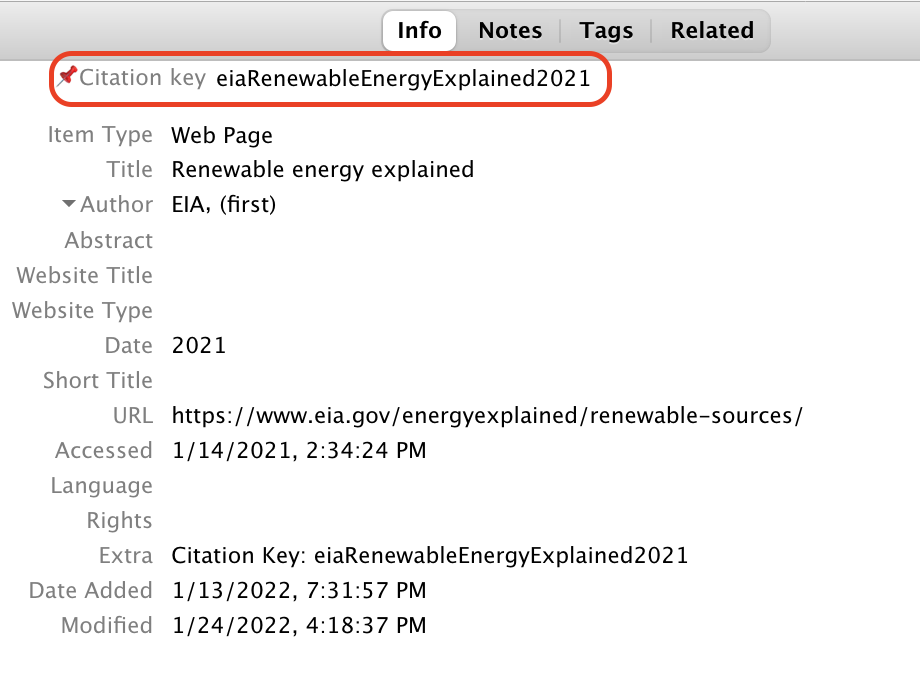
Fig. 16 Example of citation key in Zotero
Citation format
Markdown Syntax |
Output |
|---|---|
|
[Cole et al., 2020] |
|
Cole et al., [2020] |
|
2020 |
|
[Cole et al., 2020, NREL, 2012] |
|
[see Cole et al., 2020, pg. 2] |
Alternatively, you can use the “Zotero Citation Picker” VS Code extension for finding/adding references to the documentation. This extension requires Zotero to be installed, as well as Better BibTex for Zotero (the Better BibTex for Zotero installation guide can be found here).
Adding new citations to Zotero
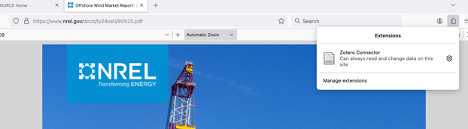
If you’re looking to add a new citation to the ReEDS Zotero library, you can do so manually, or you can use the Zotero Connector. You can download it here.
After installing the extension, you’ll need to enable it in your browser of choice. To create and save a new citation, open it in Firefox (or whatever browser you have the extension enabled), and click ‘Zotero Connector’ to run the extension and create a new Zotero citation.
Style guide
To facilitate version control, use a line break at least after every sentence, or more often for long sentences (commas, colons, and semicolons can be good locations for line breaks). Double line breaks separate paragraphs in compiled markdown, but single line breaks do not.
The documentation describes the current state of the model and is updated as the model changes. As such, do not use words or phrases like “currently” or “at this time”, as these qualifiers are understood to apply to the whole document.
Describe the current capabilities of the model as accurately as possible. If a feature is removed from ReEDS, or if it does not work and does not have a near-term rehabilitation plan, remove it from the documentation.
When mentioning a switch in
cases.csv, a variable or parameter name used within the code, or an explicit filepath within the ReEDS repo (i.e., anything that only relates to someone who interacts with the ReEDS code and data directly), do so within an “admonition” block inmodel_documentation.md. Admonition blocks are not required inuser_guide.mdor inREADME.mdfiles.
Something for users and developers
This is an example of an “admonition” block containing content that only pertains to users and developers.
Encase switch names (e.g., GSw_Region), variable/parameter names (e.g., CAPTRAN_ENERGY), and filepaths (e.g., inputs/scalars.csv) in backticks.
Filepaths should start from the root of the ReEDS repo.
Don’t copy figures from non-NREL authors, as permission would need to be requested to reproduce them. Just cite the original publication.
Because the documentation is periodically released as a technical report, it should be written like other technical reports; to avoid plagiarism, text should not be copied and pasted from other sources (even if you wrote it). If a figure is reproduced from an NREL paper, cite the source; if you use a figure from the documentation in another paper, note that it’s reproduced from the documentation and cite the documentation.
Save figures at a sufficiently high resolution to avoid fuzziness, but try to keep figure file sizes below 1 MB. When possible, add the scripts used to make documentation figures to
docs/source/plotting_scripts/.For math and symbols, use LaTeX format instead of figures or html.
For example, for inline symbols, use \(\beta_r\) (
$\beta_r$) instead of βr (*β<sub>r</sub>*).In equations and symbols, words and abbreviations should be encased in
\text{}: For example, use \(\beta_{\text{national}}\) ($\beta_{\text{national}}$) instead of \(\beta_{national}\) ($\beta_{national}$).For equations (the same as for figures and tables), always use automatic cross-references instead of hard-coding numbers. Figures and tables are referenced using
{numref}`name`; equations use{eq}`name`.
Use citations or hyperlinks instead of footnotes whenever possible.
Footnotes[1] are rendered at the bottom of the compiled html document in the order they’re referenced, regardless of where the footnote text is placed. For readability within the markdown file, add footnote text after the paragraph in which the footnote is referenced, and use descriptive footnote names instead of numbers.
Use hyphens (-) for unordered lists instead of asterisks (*).
Use two spaces for indentation.
If you use VS Code you can optionally use the markdownlint extension to manage formatting.
markdownlint configuration
If you use markdownlint, add the following settings in your .markdownlint.json file
(which can be accessed from the VS Code command palette)
to ignore issues for
line length, which we don’t enforce;
multiple blank lines, which are used before section breaks;
and inline HTML, which is used for superscripts and subscripts:
{"MD013": false, "MD012": false, "MD033": false}
Pull Request Best Practices
Best Practices for Creating PRs
To ensure a smooth process and maintain quality of the ReEDS model, the following are best practices that should be followed when creating a pull request:
Prior to creating a pull request, perform the appropriate level of testing on your branch
The national Mid_Case and USA_decarb in cases_test.csv are typically used
For more information on testing, see the Testing Guidelines section
Ensure the title of your pull request is both descriptive and concise
This is crucial, as the title of your pull request will be used in the summary of changes for each new version of ReEDS
Fill out the pull request template in detail
The description should be clear enough for someone not directly involved in your work to grasp the changes being proposed
Assign and contact reviewers
Best practice is to have 2 reviewers from the ReEDS team
Keep your pull request in draft mode until it is ready to be merged into the main branch, indicating to reviewers that it is still a work in progress
Provide a charge code to your reviewers for their time spent reviewing
Create smaller pull requests more frequently when possible
This helps avoid merge conflicts and simplifies the review process, making it more manageable for reviewers
After creating the pull request, monitor the status of the automated tests
This runs the R2X test and other checks automatically
Prior to merging your pull request, make sure to update the relevant documentation to reflect your changes. There are two places that should be updated (more information on this can be found in the documentation guidelines):
Sources_documentation
The ‘docs/’ folder within the repository
Resolving Merge Conflicts
Sometimes you might run into merge conflicts when trying to merge your branch into another branch. Merge conflicts happen when there are competing commits that Git needs you to help decide which changes should be kept in the final merge.
Merge conflicts must be resolved prior to merging a pull request and there are different ways to handle merge conflicts:
Simple merge conflicts can be resolved on GitHub. To learn more about how to do this, refer to GitHub’s documentation on Resolving merge conflicts on GitHub
Larger or more complex merge conflicts will need to be resolved using the command line and a text editor (e.g., VSCode). To learn more about how to do this, refer to GitHub’s documentation on Resolving merge conflicts using the command line
Tips and Best Practices for PR Reviews
The following are best practices that should be considered when reviewing pull requests:
Understand the context of the pull request
Prior to reviewing any code changes, read the PR thoroughly
Is the title descriptive?
Does the summary accurately state what the PR is trying to accomplish?
Is there sufficient information in the pull request to accurately convey the changes being made? Because the PR is documenting the change, part of your review entails ensuring that the model changes are properly reflected in the PR text.
What is the high-level impact of this PR? Can you summarize the change on the run results in 1-2 sentences?
Look at any linked issues or pull requests and understand what is being fixed in this pull request and which issues or incompatibilities are not being addressed.
Look at the compare report and any other figures included in the PR
Do you understand why these code/file changes resulted in these results?
What is the high-level impact of this PR? Can you summarize the change on the run results in 1-2 sentences?
Are these changes explainable/justifiable to both our internal and external audiences?
Review the code
Look at each file that has changed
Do code changes or new code added make sense?
Ensure newly added code is documented (even if it’s just a single-line comment)
Flag any instances where you notice that the code does not follow the Coding Conventions
Identify if/how these code changes could cause problems later.
What other parts of the model do these changes interact with? Is that interaction broken or no longer an accurate representation with these changes?
What could break if we ran different scenarios with these changes? We typically look at the impact of our changes on “main” or “Standard Scenarios Mid-Case” type runs but also consider the potential impact on decarbonization scenarios, county level runs, smaller region runs, scenarios with hydrogen enabled, etc. We want to foresee any possible impacts this might have. If you have a concern or are curious about how this change might impact a certain type of run, ask the PR author, they might have looked at similar scenarios.
Look at any input files that have changed
Reviewing the commit history can sometimes be helpful in determining what has changed
Do the input changes make sense? Are they consistent with the PR descriptions?
There are a couple tools that help with comparing two different csv files:
Check out the branch locally (optional)
You should check the branch out locally and run the test scenario(cases_test.csv) to ensure there are no issues
If there are a large amount of changes to one of the scripts or code files (ex. input_processing scripts or GAMS files), it could be helpful to run just that script and walk through it line by line with a debugging tool (ex. pdb) to more deeply understand how the revised script functions and any issues we might face with the way that script is now written.
A few notes on reviewing pull requests:
When reviewing PRs, be sure to provide constructive feedback and highlight positive aspects as well. Reviewing PRs is an opportunity to learn from one another and support each other’s development as developers!
Ask clarifying questions if something is unclear
Reviewing PRs can be daunting if you are new to the team or to the code development process. Remember that this is an opportunity for you to learn more about the model as much as it is about getting the code changes integrated into the model. Even experienced developers make errors, hence the importance of getting a second set of eyes on the code changes. Your input and insights are valuable.
If you don’t understand what is going on with a code change, chances are high that others won’t understand either, so ask for clarification, including asking for more comments or explanation in the PR text.
If there is a section of the PR that you don’t feel comfortable reviewing, you should request a review from another team member
Request changes as necessary and explain your reasoning
Remember that the PR submitter is ultimately responsible for the changes in the PR, not you, so give the PR review a good effort, but don’t agonize over every detail.
If reviewing a PR becomes too large of a chore, feel free to reach out to others on the team to be able to tackle the PR review jointly
If necessary, make sure the ReEDS documentation was updated to reflect the code changes
Instructions for how to update the documentation can be found here
ReEDS Development Tips
Debugging Python Code
When working with python code, there are a couple of useful methods for debugging. The first is using the Python Interactive Window.
Cells are denoted by #%%, and you can run the code in a given file by cells in the interactive window. This allows you to view data and variables, as well as create graphs and visuals. This can be very helpful in stepping through a script to see what is happening in your code.
For more information, see the Python Interactive Window documentation.
Another way to debug is to use the Python Debugger Extension in VS Code. For more information on how to set up and use the python debugger, see Python debugging in VS Code.
When using the python debugger, you will need to set a configuration. Here’s an example of what that might look like (launch.json file):
{
    // Use IntelliSense to learn about possible attributes.
    // Hover to view descriptions of existing attributes.
    // For more information, visit: https://go.microsoft.com/fwlink/?linkid=830387
    "version": "0.2.0",
    "configurations": [
        {
            "name": "Python Debugger: calc_financial_inputs.py with arguments",
            "type": "debugpy",
            "request": "launch",
            "program": "${file}",
            "console": "integratedTerminal",
            "args": [
                "/Users/kminderm/ReEDS-2.0",
                "/Users/kminderm/ReEDS-2.0/runs/main_Pacific/inputs_case"
            ],
            "purpose": ["debug-in-terminal"]
        },

    ]
}
For more on debugging, you can watch the following video: GPAC’s WEI Tips and Tricks Series: Introduction to Debugging
Debugging GAMS Code
When making changes to the GAMS code, something that can be helpful when debugging an issue is to compare the data before and after your change. You can do that by inserting an ‘execute unload’ statement into the gams code. Example of what this looks like:
execute_unload 'before.gdx' ;
If you’re interested in only a specific variable, you can specify it like this:
execute_unload 'before.gdx' valcap ;
Additionally, if you want to re-run a given scenario without having to run all of the input processing again, you can open the call_{batch name}_{case}.bat/.sh file, delete all of the lines you don’t want to run again, and then run that file from the command line. Note: be sure to edit/run the call_{batch name}_{case}.bat/.sh file from within the specific run folder
Additional Development Tips
To avoid the prompts when kicking off a run, you can use the command line arguments:
The following example runs the scenarios in cases_test.csv with the batch name ‘20240717_test’. The ‘-r -1’ means that all cases will run simultaneously.
python runbatch.py -c test -b 20240717_test -r -1
All options for command line arguments that can be used:
Flag
--BatchName/-bName for batch of runs
--cases_suffix/-cSuffix for cases CSV file
--single/-sName of a single case to run (or comma-delimited list)
--simult_runs/-rNumber of simultaneous runs. If negative, run all simultaneously
--forcelocal/-lForce model to run locally instead of submitting a slurm job
--restart/-rSwitch to restart existing ReEDS runs
--skip_checks/-fForce run, skipping checks on conda environment and switches
--debug/-dRun in debug mode (same behavior as debug switch in cases.csv)
--debugnode/-nRun using debug specifications for slurm on an hpc system
If you’re on Mac and would like to have the terminal always show what branch you’re on, you can set up Git Bash for Mac with the following: Git Bash for Mac
Using the following run name format keeps your runs folder organized: ‘vYYYYMMDD’